A rest timer that starts on its own
“I never know if I’ve rested long enough.”
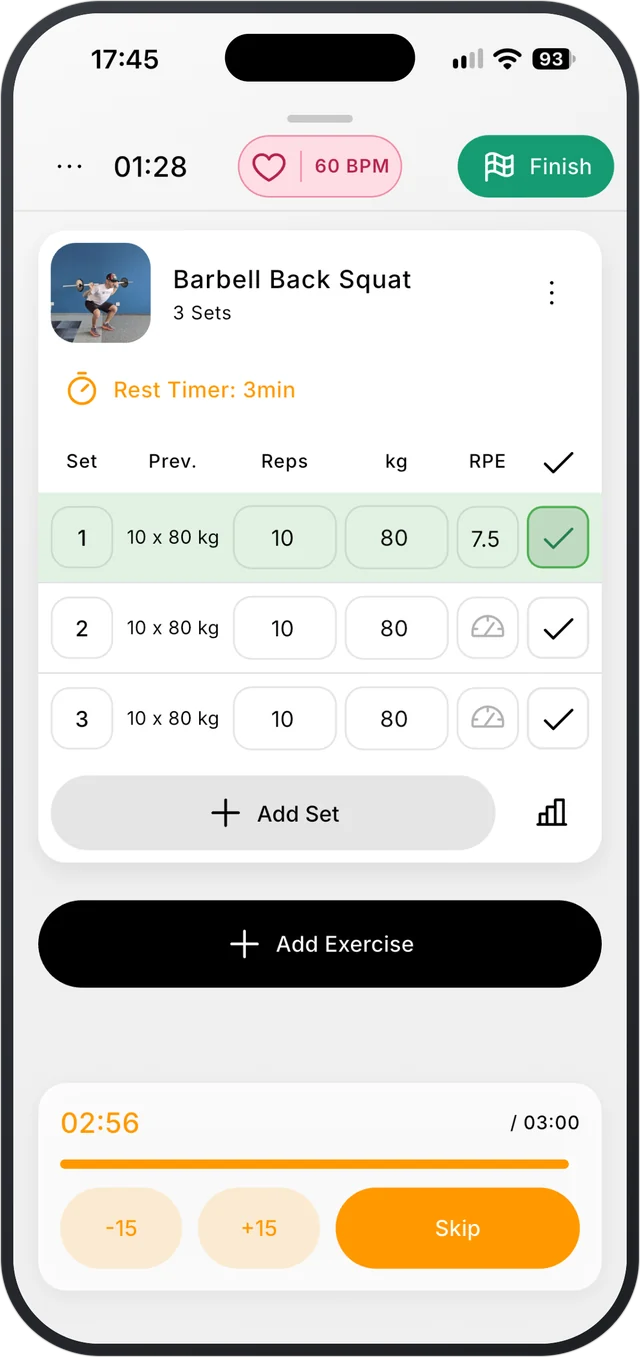
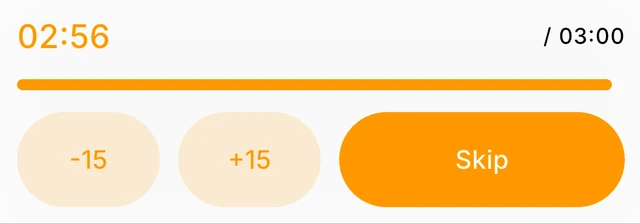
Tick a set and the rest timer starts. Add 15 seconds, cut 15, or skip. Put your phone away and follow it from the Lock Screen on iPhone, or the notification on Android. Free.


How it works
- 1
Log a set
The timer starts by itself, with the rest time saved for that exercise. Heavy set? Tap +15. Ready early? Skip.
- 2
Set it up your way
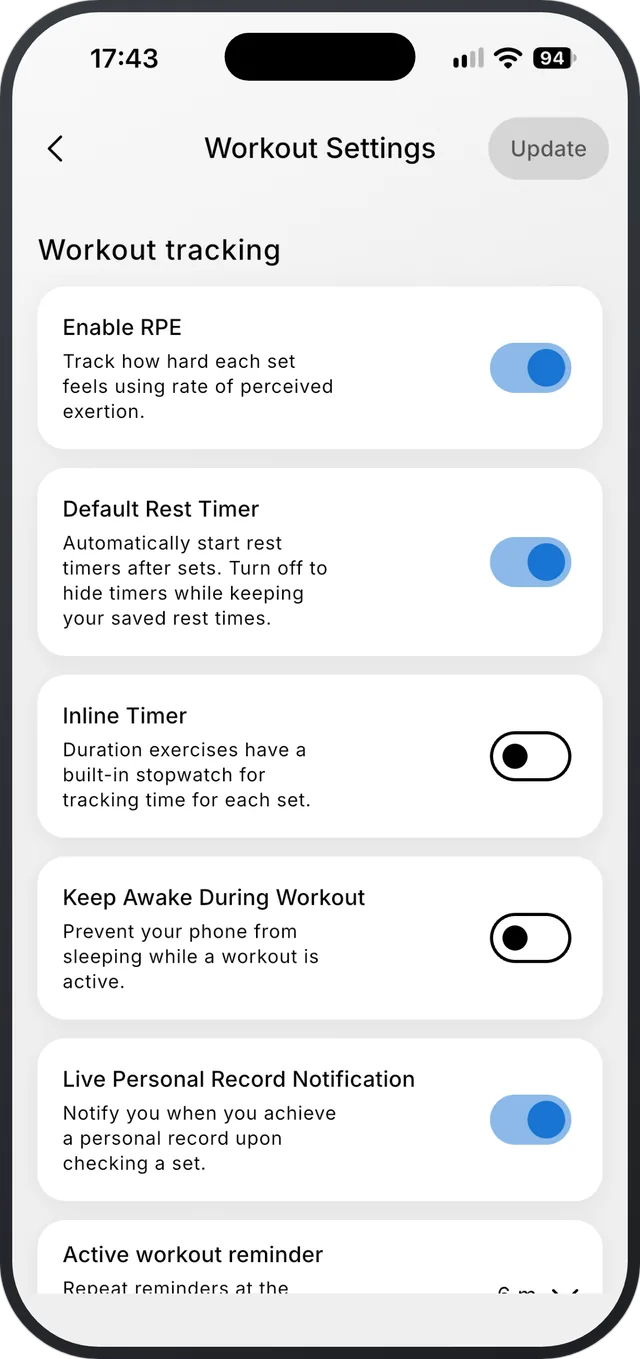
In the workout settings, turn the timer on or off, pick the sound that tells you it’s time and how loud it is, and keep the screen awake if you like.
- 3
Follow it without opening the app
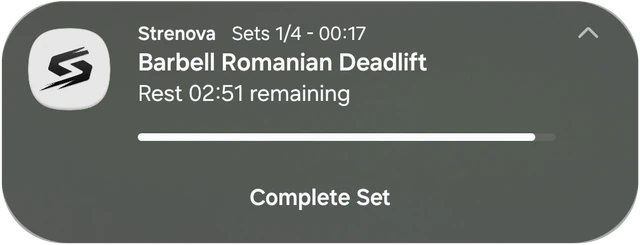
On iPhone, the Live Activity shows the time, your next set and the rest countdown on the Lock Screen and in the Dynamic Island, with −15, +15, Skip and Complete set. On Android, the workout notification does the same.
What you can set
- Rest timer on or off. Off hides it but keeps your saved rest times.
- Timer sound and volume, with separate volumes for logging a set and new records.
- A reminder if a workout sits idle for 6, 12 or 15 minutes, or never.
- Keep the screen awake during a workout.
What it doesn’t do
- There’s no Apple Watch or Wear OS app.
- Lock Screen text is in English, Spanish and Macedonian for now.
Questions
Does the rest timer start automatically?
Yes. It starts when you log a set. You can turn it off in the workout settings.
Can I see the timer on my Lock Screen?
On iPhone, yes, through a Live Activity on the Lock Screen and in the Dynamic Island. On Android, it shows in the workout notification.
Can I change the rest time mid-workout?
Yes. Add or cut 15 seconds while it runs, or skip it.
Progressive overload, made easy.
Free on iPhone and Android.